
Tiger Touch

Your Panda Touch is in a drawer. Give it every printer you own. A free, open-source firmware that turns the BIGTREETECH Panda Touch and K-Touch into one live touchscreen for all your 3D printers — no soldering, no computer.
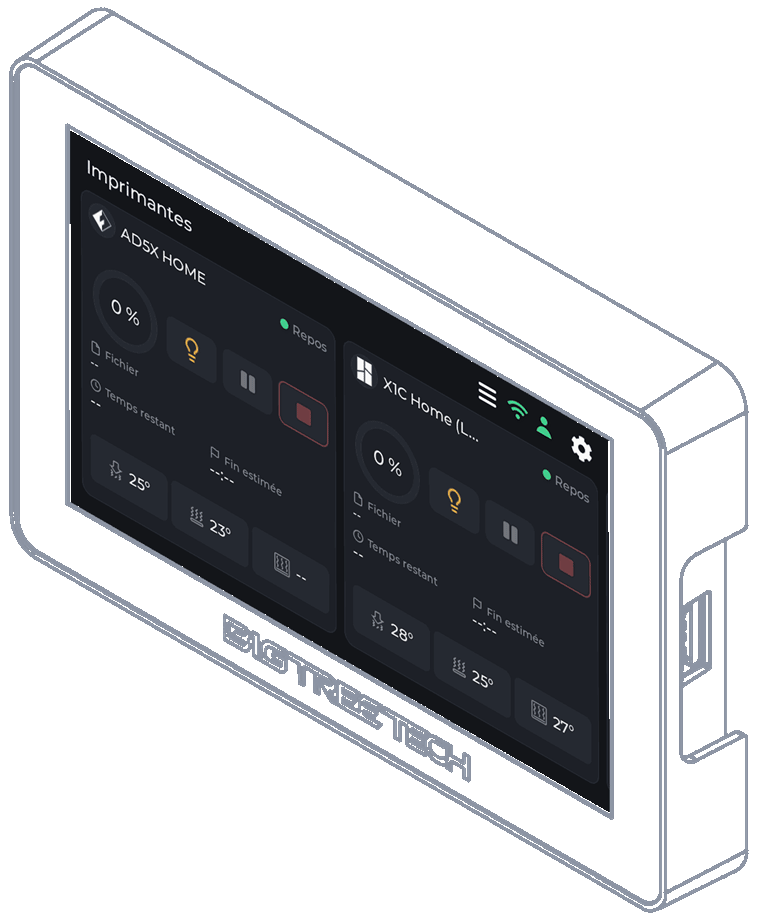
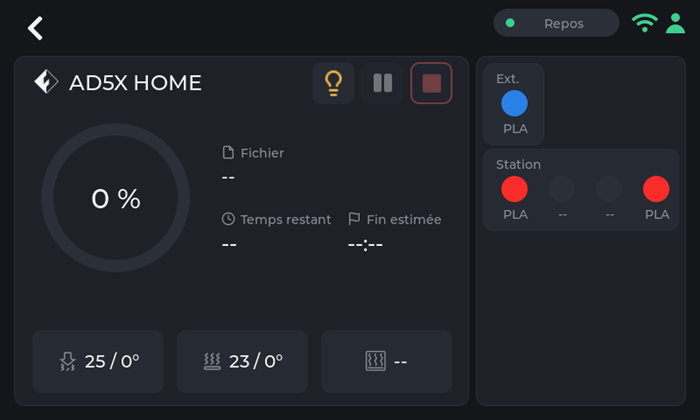
Two live printer cards on one screen: a FlashForge AD5X and a Bambu Lab X1C.
 Sources
BIGTREETECH sells one little 5” touchscreen under two names: the Panda Touch, made for Bambu Lab printers, and the K-Touch, made for Klipper printers. Same board, two firmwares, each tied to one family of machines. Change printer, and the screen goes into a drawer.
Tiger Touch is a new firmware for that same screen, written from scratch. It signs in to your free TigerTag account, finds every printer you declared there, and talks to each one directly, over its own protocol, at the same time. If you own a Panda Touch or a K-Touch that no longer matches your printers, it is the hardware Tiger Touch was made for.
Open source under MIT. Nothing to solder, nothing to print, no Raspberry Pi, no server in between: you plug the screen into a USB port, press Install in your browser, and two minutes later it shows your printers.
What it does
Section titled “What it does”- Every brand on one screen — Bambu Lab, Creality, Elegoo, Anycubic, Snapmaker, FlashForge, Prusa, plus any Klipper (Moonraker) or OctoPrint machine.
- Cloud and LAN — Bambu Lab through the Bambu cloud or in LAN mode, Anycubic through the Anycubic cloud or on the LAN, the others on your local network.
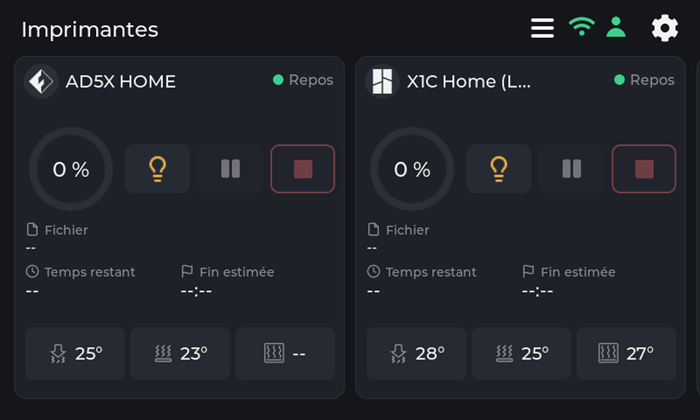
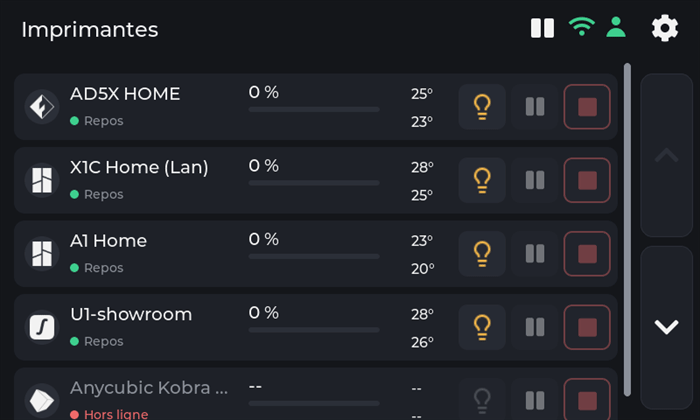
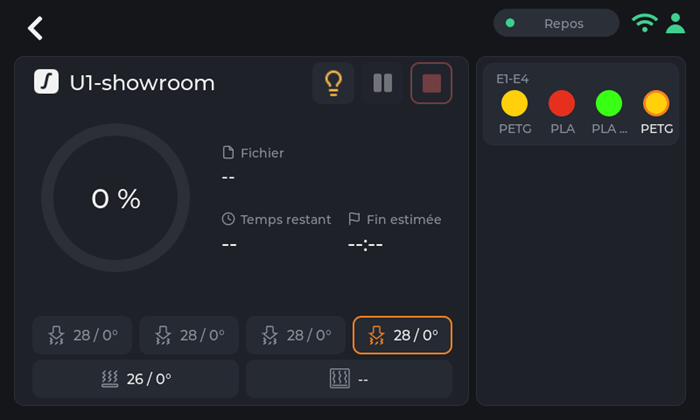
- Live, all of them — state, progress, file, time left and end time, nozzles, bed, chamber and filament units (AMS, CFS, Station, ACE, MMU / AFC lanes), with up to ten printers followed at once.
- Safe controls — pause, resume, stop (a 1.5 s hold, so a stray finger never ends a print) and the printer’s light. Nothing else is ever sent: no heating, no moving, no starting a print.
- Updates itself — new versions arrive over Wi-Fi, verified before install, rolled back by themselves if they fail to start.
- Eleven languages — English, French, German, Spanish, Italian, Chinese, Portuguese (Brazil and Portugal), Polish, Russian, Dutch.
Where it sits
Section titled “Where it sits”
flowchart LR
  ST["Tiger Studio"] -- "you declare your printers" --> FB[("Your TigerSystem account")]
  FB -- "printers, addresses, access codes" --> TT["Tiger Touch<br/>Panda Touch / K-Touch, 5 inch screen"]
  TT -- "each brand's own protocol" --> PR["Your printers<br/>up to ten at once"]
What has to exist first
Section titled “What has to exist first”Tiger Touch reads your printers from your TigerSystem account, so it never asks for an address or an access code on a 5” screen. Create the account and add your printers in the desktop Tiger Studio (Windows, macOS, Linux), which finds them on your network — the web version cannot add printers.
In short: Tiger Studio → create an account → add your printers → then set up the screen.
Which printers
Section titled “Which printers”Tiger Touch picks the connection from the brand, not the model: any printer of these families that Tiger Studio can add, Tiger Touch can show. Tiger Studio’s catalogue counts more than 400 models from about 60 makers.

| Brand | Connection | Seen on a real machine |
|---|---|---|
| Bambu Lab (X1, P1, P2S, A1, H2…) | Bambu cloud, or LAN (MQTT over TLS) | Yes — printing through the cloud (P2S), idle in LAN mode (X1C, A1) |
| Creality (K2, K1, Hi, Ender-3 V4…) | WebSocket on the LAN | Yes — printing (K2), idle with its CFS (Ender-3 V4) |
| Snapmaker U1 | Moonraker WebSocket | Yes — idle, four tool heads |
| FlashForge (AD5X, Adventurer 5M, Creator 5, Creator 5 Pro) | HTTP on the LAN | Yes — AD5X: pause, stop and the light |
| Anycubic (Kobra 3, Kobra X, Kobra S1…) | Anycubic cloud, or LAN (MQTT over TLS) | Yes — through the cloud (Kobra X), with its ACE: the light, pause, resume and stop |
| Elegoo Centauri Carbon 1 and 2 | MQTT (CC2), SDCP (CC1) | Yes — Centauri Carbon 2 and Centauri Carbon: pause, resume, stop, and the light on the CC2 |
| Prusa (MK4, Core One, XL, MINI) | PrusaLink | Yes — progress, temperatures, pause, resume, stop |
| Klipper — Voron, Qidi, Sovol, RatRig… | Moonraker HTTP | Yes — on a real Klipper printer: pause, resume, stop and the light |
| OctoPrint — any Marlin printer behind it | OctoPrint REST API | Against Tiger Studio’s test printer only |
OctoPrint has only met Tiger Studio’s test printer so far, and each brand has models nobody has tried yet: a report from your printer is the most useful thing you can send. Pause, resume and stop work wherever the connection takes commands (not through the Bambu cloud); the light works everywhere except Prusa, OctoPrint and the Centauri Carbon 1. Each brand has its own page, with its setup and its questions, on the installer site. Every field and every test is in the per-brand status.
A printer shows “offline”? Check its LAN mode first: it is off by default on Creality, FlashForge and Bambu Lab.
One screen, every brand
Section titled “One screen, every brand”The firmwares the screen ships with each know one family of printers.
| Tiger Touch | Panda Touch firmware | K-Touch firmware | |
|---|---|---|---|
| Printer families on one screen | 9 | 1 (Bambu Lab) | 1 (Klipper) |
| Printers live at once | up to 10, all updating together | several Bambu Lab, slows down from about 3 in our use | 1 at a time (50 saved, switch between them) |
| Printers set up | from your TigerTag account, nothing typed on the screen | IP, serial, access code | IP and port, or a scan |
| Over-the-air updates | Yes, verified, with automatic roll-back | No | No |
BIGTREETECH’s firmwares give full control of their one family — starting prints, temperatures, moves — which Tiger Touch deliberately does not. You can go back to them at any time.
The Panda Touch and K-Touch columns come from BIGTREETECH’s own wiki (read 2026-10-16); “slows down from about 3” is the TigerTag team’s own experience, not a BIGTREETECH figure.
Install in two minutes
Section titled “Install in two minutes”- Declare your printers in Tiger Studio, as above.
- Flash the screen from your browser. Open https://tigertag-project.github.io/Tiger-Touch/ in Chrome or Edge on a computer (WebSerial: not Safari, not Firefox, not a phone), plug the screen in with a USB-C data cable, press Install and pick its port. Replacing the BIGTREETECH firmware: tick Erase device. Updating a Tiger Touch over USB: leave it unticked, your Wi-Fi and account are kept.
- Follow the screen. Language, Wi-Fi, then your TigerTag account — e-mail and password, or Continue with Google with a QR code scanned by your phone. Switch on the printers you want to follow, and that is it. Later is always an answer: the screen starts at once and connects in the background.
After that there is nothing to do: the screen checks for a new version once a day and installs it in two touches.
First time? The install guide covers the USB driver (required on macOS), keeping a copy of the BIGTREETECH firmware so you can go back, and the one box to tick.
The hardware
Section titled “The hardware”The BIGTREETECH Panda Touch and K-Touch are designed and made by BIGTREETECH (BIQU): a 5” 800×480 IPS touchscreen around an ESP32-S3 with 8 MB of PSRAM and 16 MB of flash, Wi-Fi, USB-C and a battery. Tiger Touch runs on it unmodified, and builds on the board support BIGTREETECH published for it under the MIT license. The K-Touch is the same board as the Panda Touch, so the same image is meant for it — but Tiger Touch has been run on a Panda Touch only so far: a report from a K-Touch is welcome.
Tiger Touch is an independent project, not made or endorsed by BIGTREETECH, BIQU, or any printer maker named here.
Build it yourself with ESP-IDF 5.5 — the steps are in the repository.
Related: Tiger Studio, TigerSpool, Printer compatibility