
How to send a request
Tiger Studio Manager lets you send the team a problem, an idea, a catalogue fix or a question without leaving the app. It is free, it needs no GitHub account, it is sent without your name or email, and it becomes a public issue on GitHub that the team can read and answer.
The screens below come from Tiger Studio Manager v2.41.0.
Open the form
Section titled “Open the form”You need to be signed in to Tiger Studio Manager. In the sidebar, click Improvements & suggestions (1) — the ✨ button near the bottom; if the sidebar is collapsed, it is the ✨ icon.
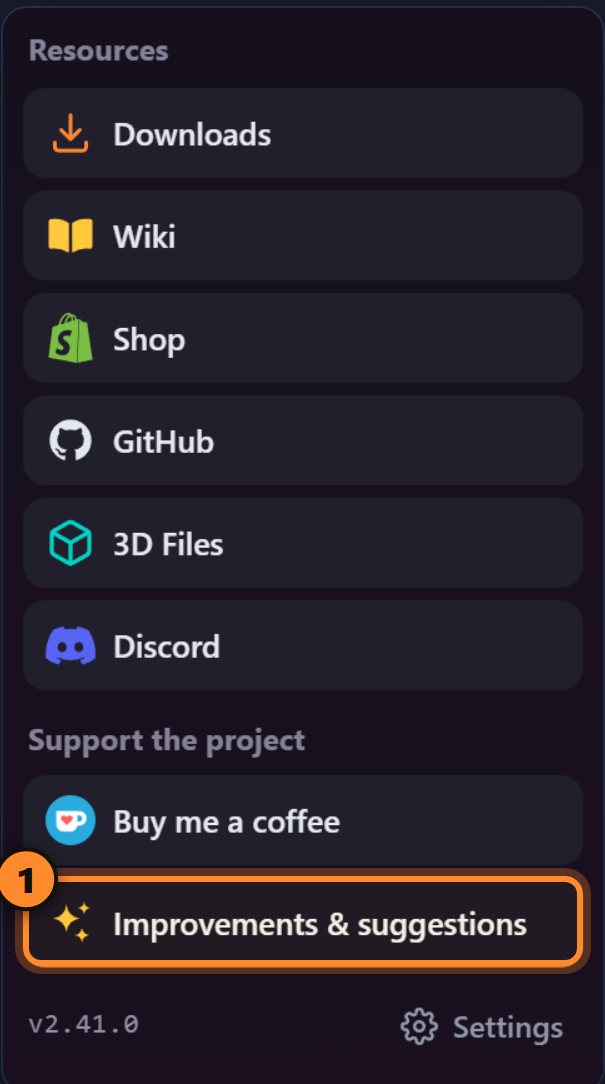
The form opens as a side card: the app stays usable behind it. Close it, go to another screen, open it again — your draft is kept until you send it.
Pick a type
Section titled “Pick a type”There are six types, one per kind of request, and each has its own form with its own wording. Pick the one that fits (1–6). The Send feedback tab (7) is where you are; My requests (8) keeps track of everything you sent — see Follow your request.
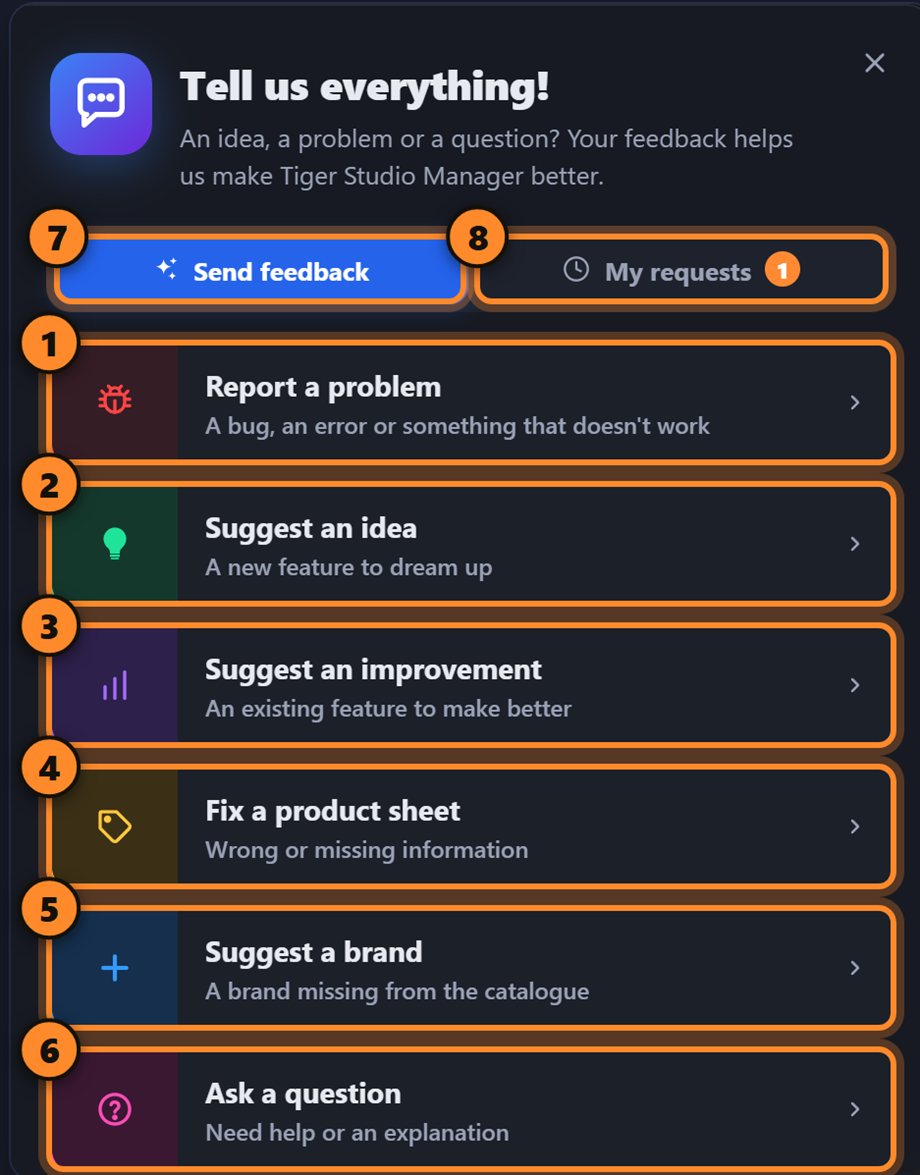
| Type | Use it for | Example |
|---|---|---|
| Report a problem | A bug, an error, something that does not work | The camera view freezes after a reconnect |
| Suggest an idea | A new feature for the whole Tiger System | Notify me when a spool is almost empty |
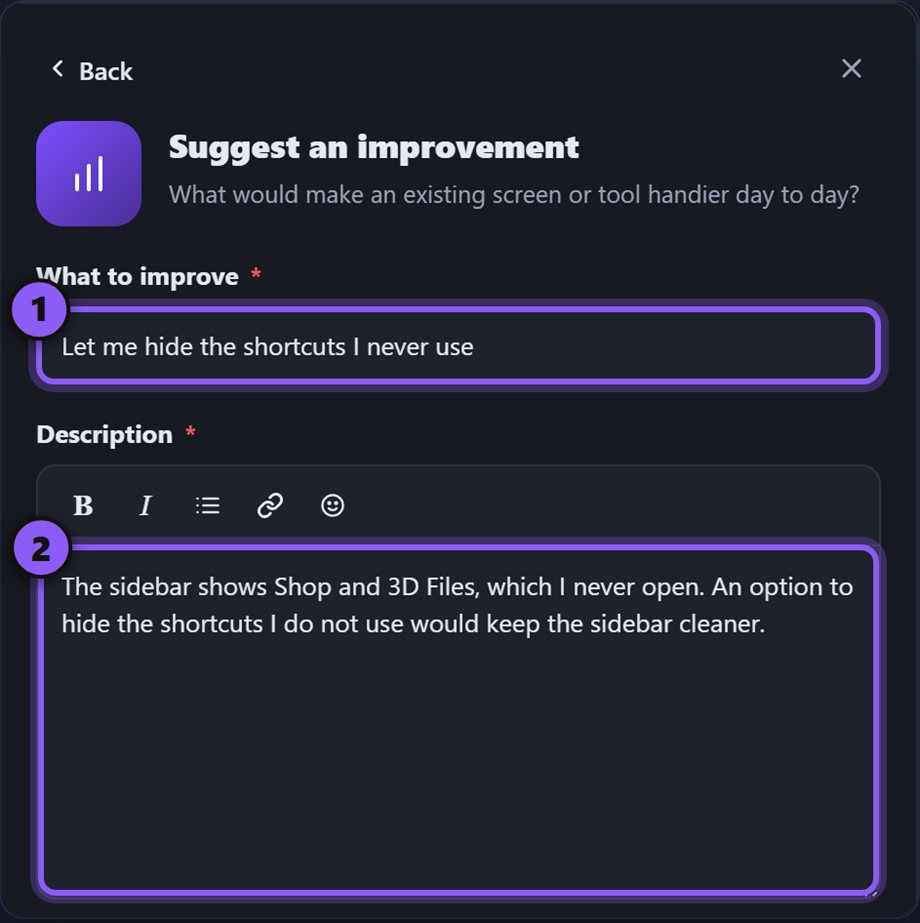
| Suggest an improvement | Something that exists but could be handier | Let me hide the shortcuts I never use |
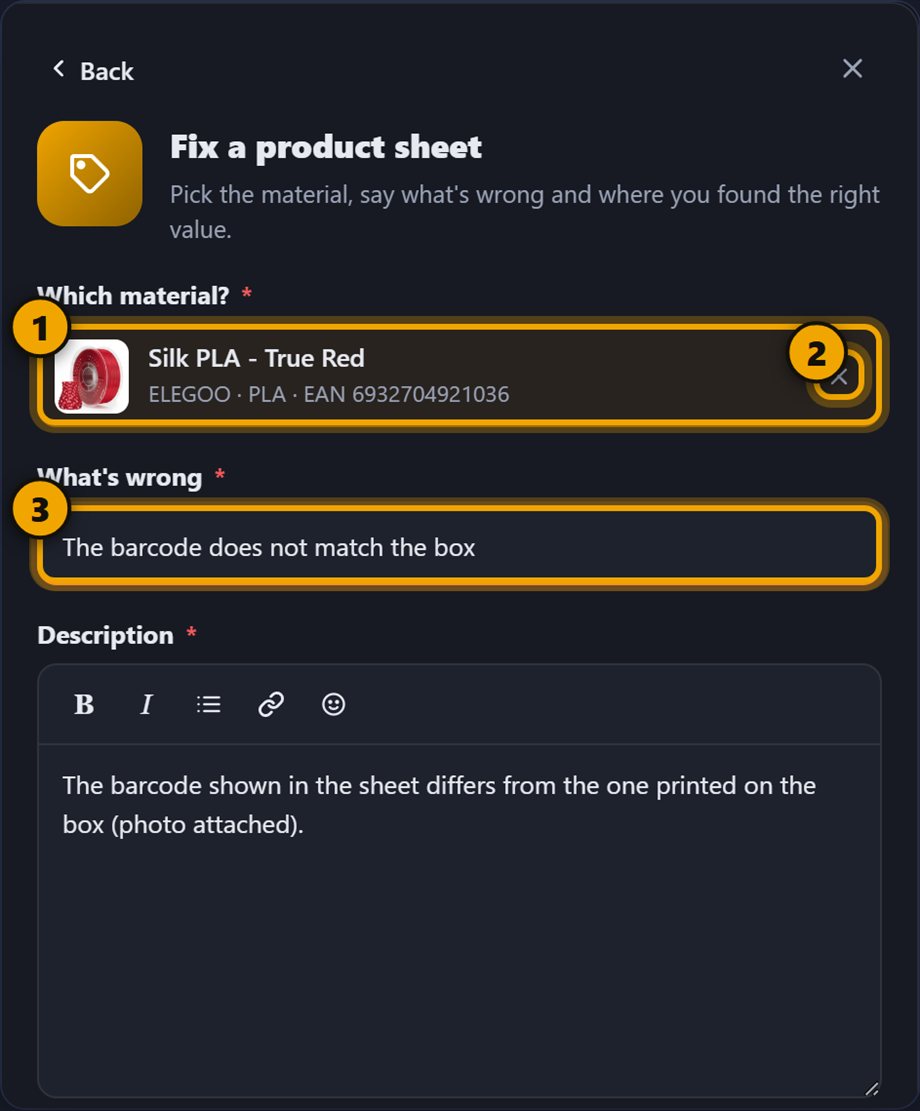
| Fix a product sheet | A filament with a wrong or missing value in the catalogue | The barcode does not match the box |
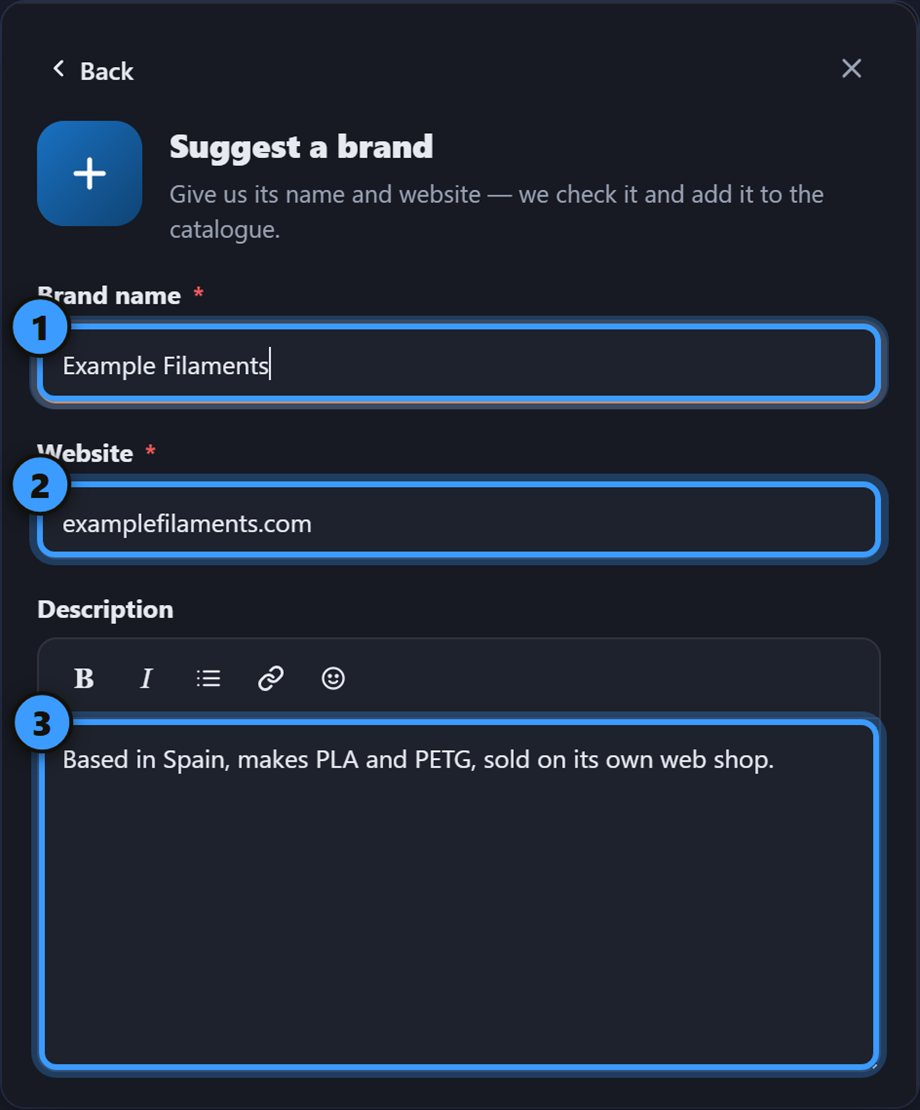
| Suggest a brand | A brand that is missing from the catalogue | Example Filaments — examplefilaments.com |
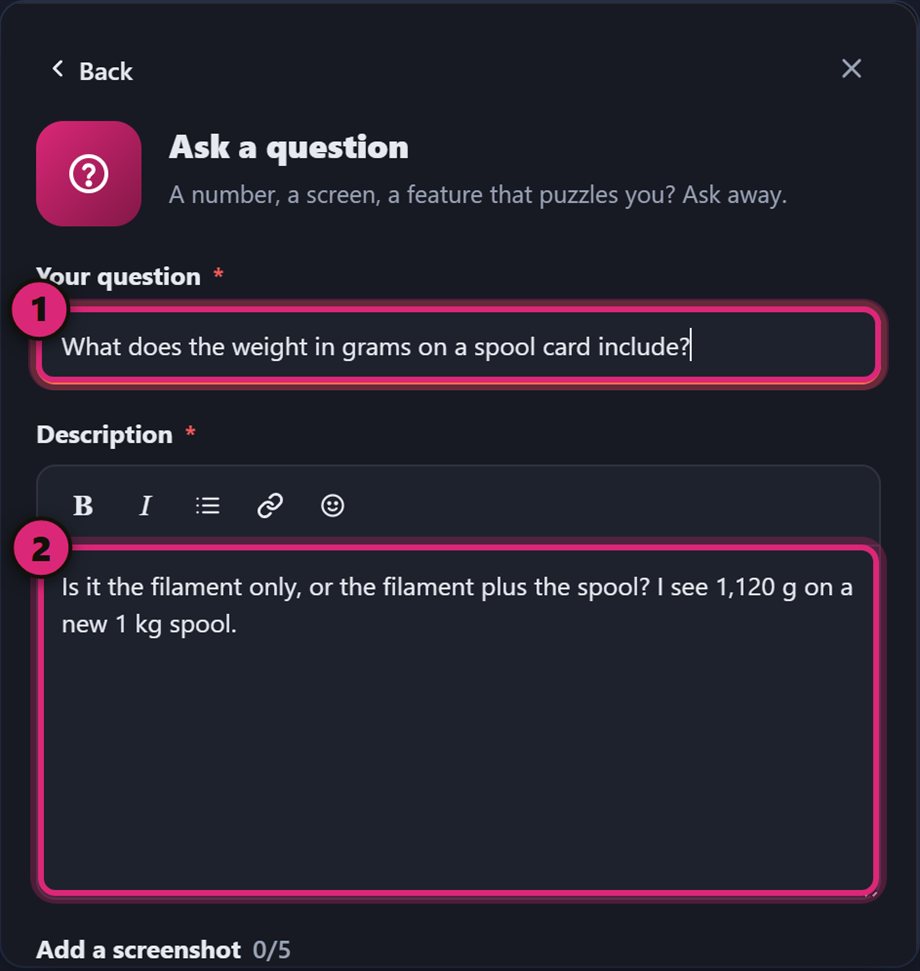
| Ask a question | A number, a screen or a feature that puzzles you | What does the weight on a spool card include? |
Fix a product sheet and Suggest a brand are about the catalogue data (a filament’s values, a missing brand). Ask a question is for help or an explanation. Everything about the app itself goes in Report a problem, Suggest an idea or Suggest an improvement.
Write your request
Section titled “Write your request”The form is the same for most types: a title, a description, the pictures, the check — then send. Here it is for Report a problem:
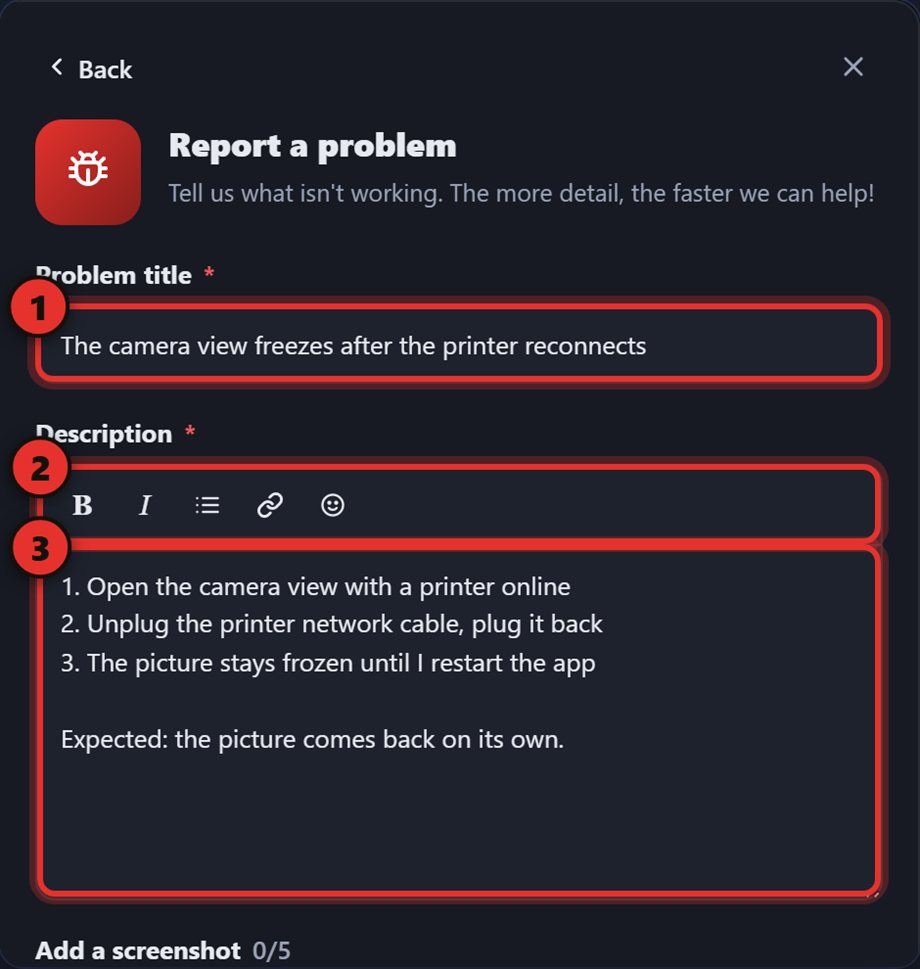
- Problem title — one line.
- Formatting toolbar — bold, italic, a list, a link and emoji.
- Description — what you did, what you expected, what happened instead.
A good report, in three lines:
Title: The camera view freezes after the printer reconnects Description: 1. Open the camera view with a printer online. 2. Unplug the printer’s network cable and plug it back. 3. The picture stays frozen until I restart the app. Expected: it comes back on its own.
The other five types
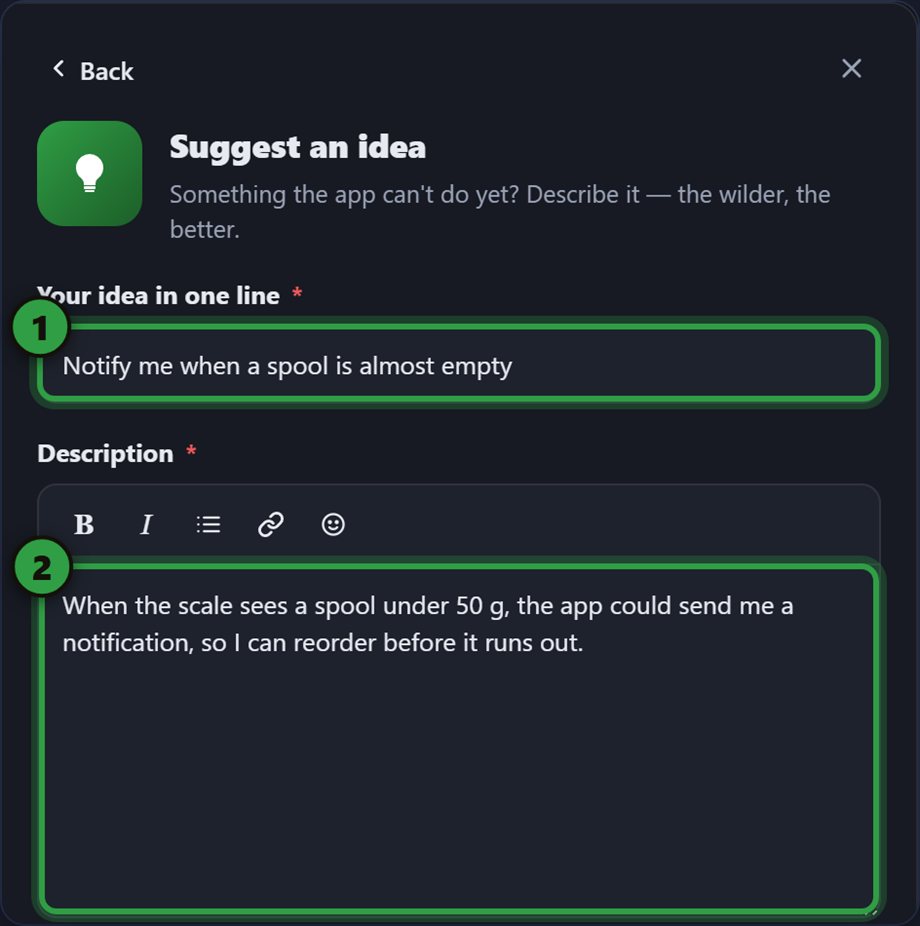
Section titled “The other five types”The three app types — Report a problem, Suggest an idea, Suggest an improvement — share the same layout; only the labels and the send button’s name change (Send my report, Send my idea, Send my suggestion).
Suggest an idea — one line for the idea, then how it would work and what it would change for you. It is for the whole Tiger System — the wilder, the better.
Suggest an improvement — one line for what to improve, then what is in the way today and how you would like it to work. A picture of the screen concerned makes it clear.
Fix a product sheet — search the material (brand, name, colour or barcode) and pick it (1; 2 picks another one), then say what is wrong (3) and where you found the right value — box, label, maker’s website.
Suggest a brand — the name and the website are required: the team checks the site before adding the brand. The description is optional — country, materials, where to buy.
Ask a question — one line for the question, then where you saw it and what does not add up. Pictures help here too.
Add pictures and files
Section titled “Add pictures and files”A picture shows the problem better than a description. Drag files onto the form, browse for them, paste a screenshot, or click Capture the current window (2 in the next picture). The card hides itself for a moment so the picture shows the app, not the form — so you can close the card, go to another screen and capture it.
What you can attach:
- Up to 5 files in total.
- Pictures — PNG, JPG, WEBP.
- PDF — up to 5 MB (a datasheet, an invoice, a label).
- JSON — up to 2 MB, and it must be a valid JSON file (an export, a printer status…).
- Click the ✕ on a thumbnail to remove it.
Draw on a picture
Section titled “Draw on a picture”Click a picture to open the editor. Pick a tool and draw: a box around the thing, numbered steps in the order things happen, an arrow… Every mark stays editable until you click Done (top right); Cancel throws the edits away.

- Move (V)
- Pen (P)
- Eraser (E)
- Arrow (A)
- Line (L)
- Box (R)
- Circle (O)
- Highlighter (H)
- Text (T)
- Numbered step (N)
- Blur (B)
- Colours
- Sizes — S, M, L, XL
- Undo, redo, duplicate, delete
The letter shown on each tool is its keyboard shortcut. Hold the pointer over a tool for its tip; drag an object to move it, use its corners to resize it, Delete removes it.
Check and send
Section titled “Check and send”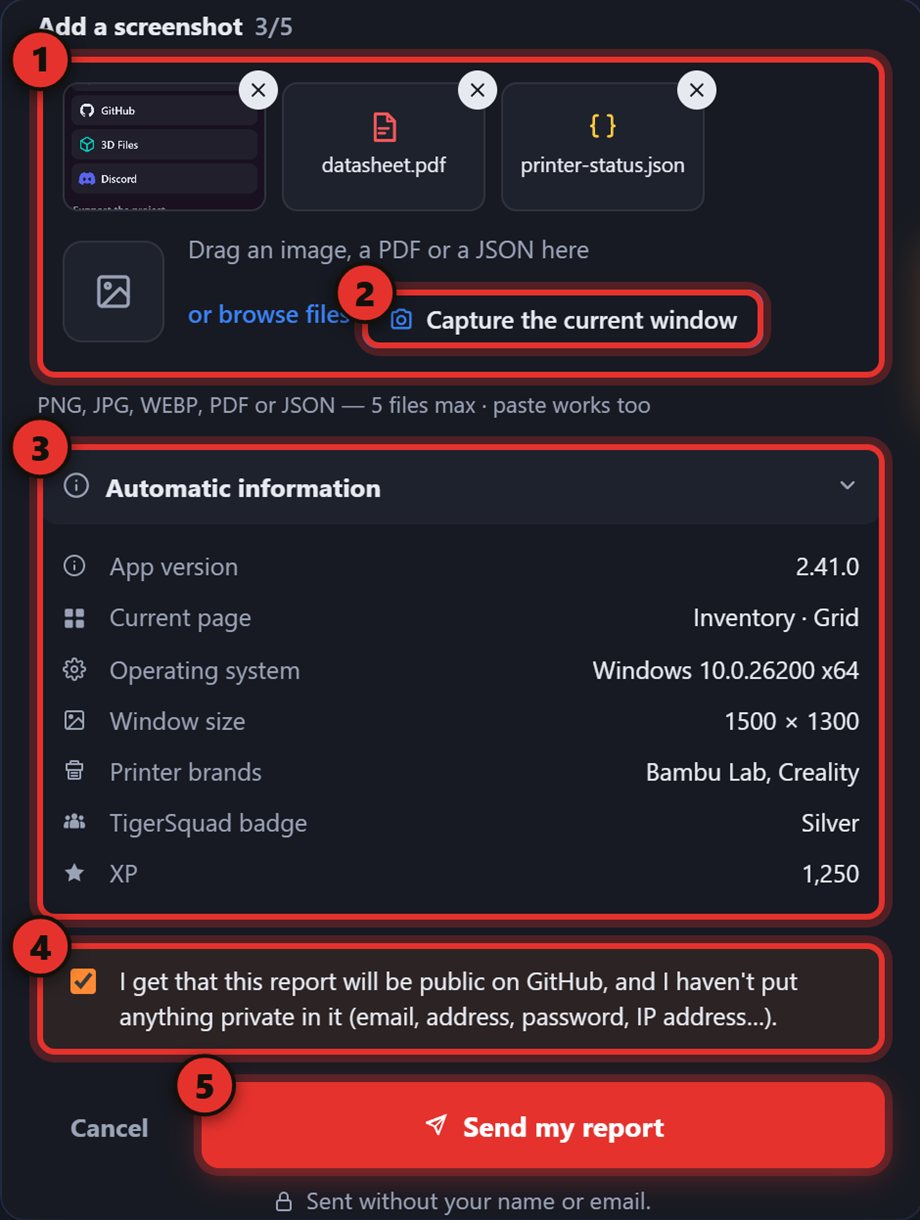
- Attachments — pictures or files (optional).
- Capture the current window.
- Automatic information — open it to see exactly what travels with your request.
- Confirmation box — your request is public, so put nothing private in it (email, address, password, IP address…). Tick the box.
- Send — the button’s name matches the type: Send my report, Send my idea, Send my suggestion…
What Automatic information contains:
- App version, current page, operating system and window size.
- Printer brands — never names, addresses or codes.
- Your TigerSquad badge and XP.
- If the app recorded errors, a box lets you attach them too.
After you send
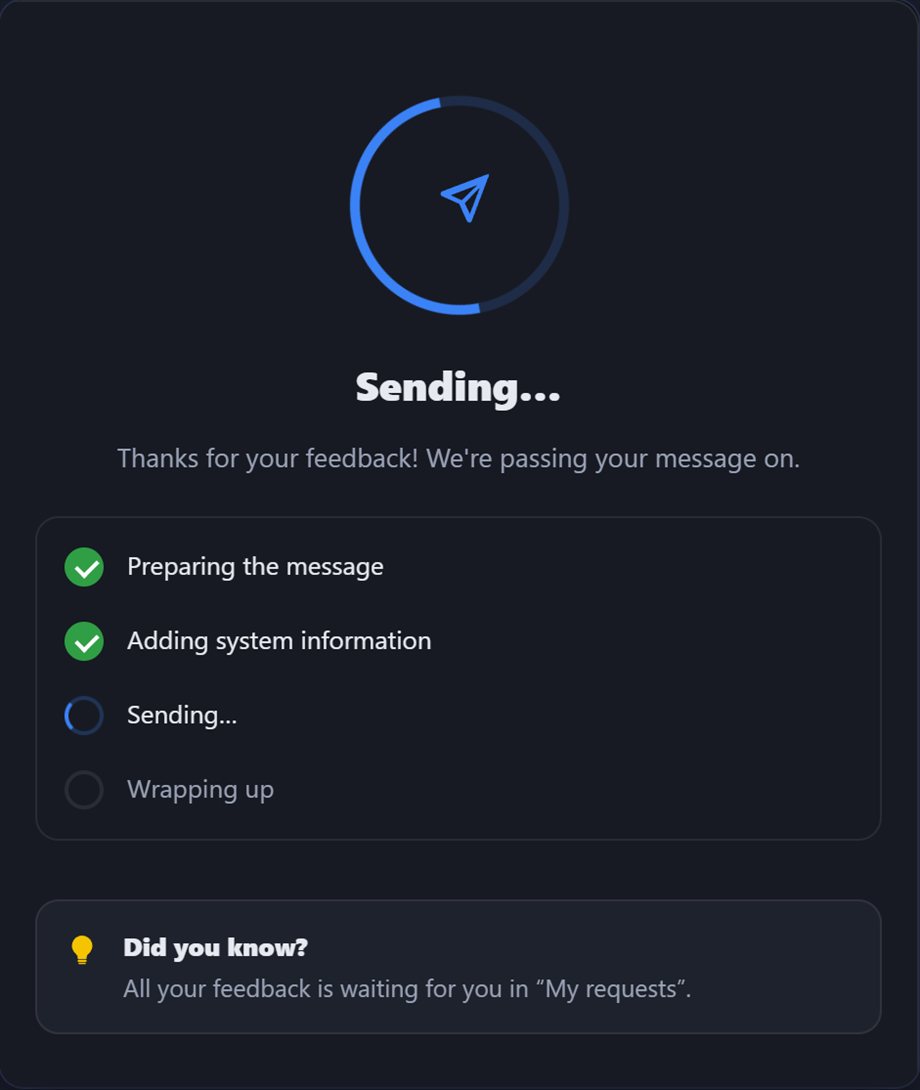
Section titled “After you send”While it sends, a short progress list runs: preparing the message, adding the system information, sending, wrapping up. If it fails, you stay on the form with your draft — try again.
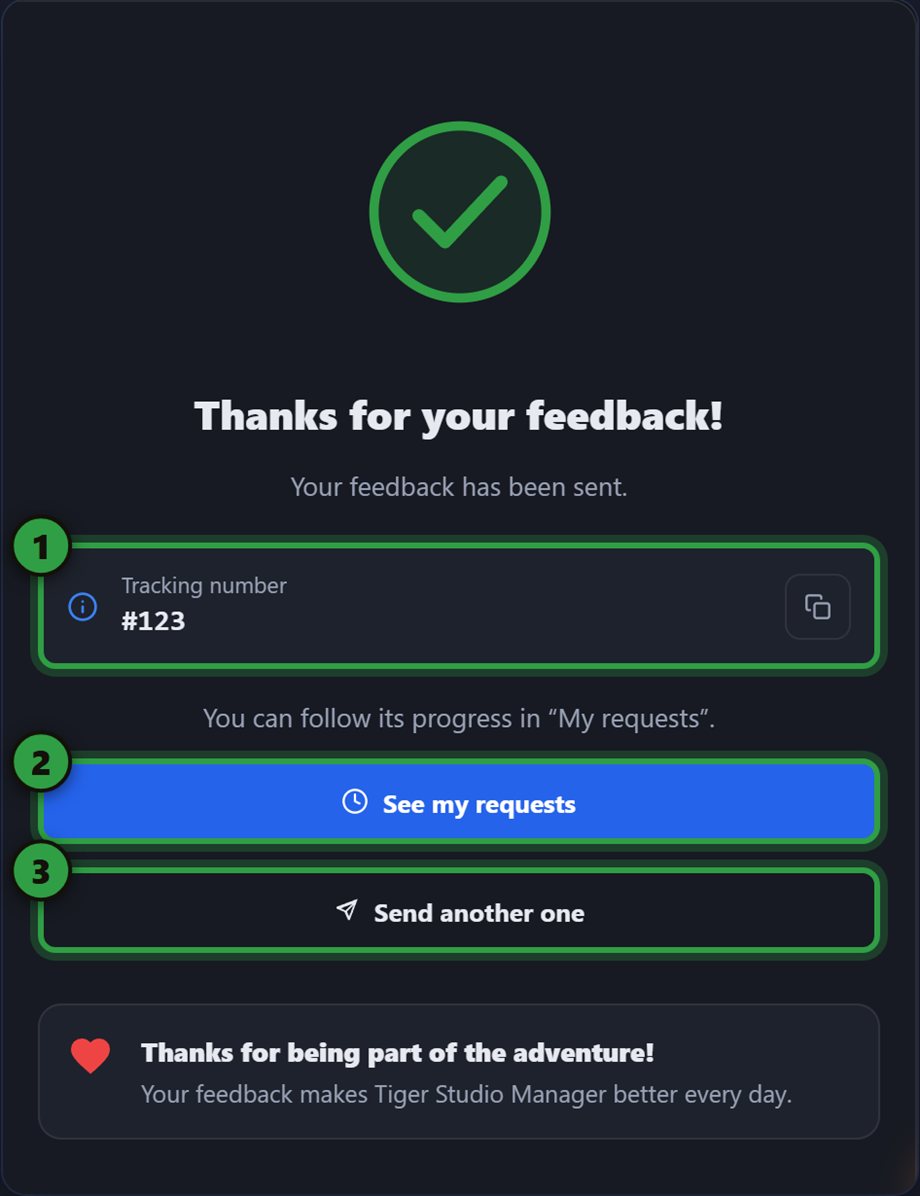
Then you get a confirmation: your request now exists as a public issue. Keep the tracking number (1) — it is the number of the issue on GitHub. See my requests (2) opens the follow-up; Send another one (3) starts a fresh form.
Follow your request
Section titled “Follow your request”The My requests tab lists everything you sent, with its progress; the number on the tab counts the ones still open.
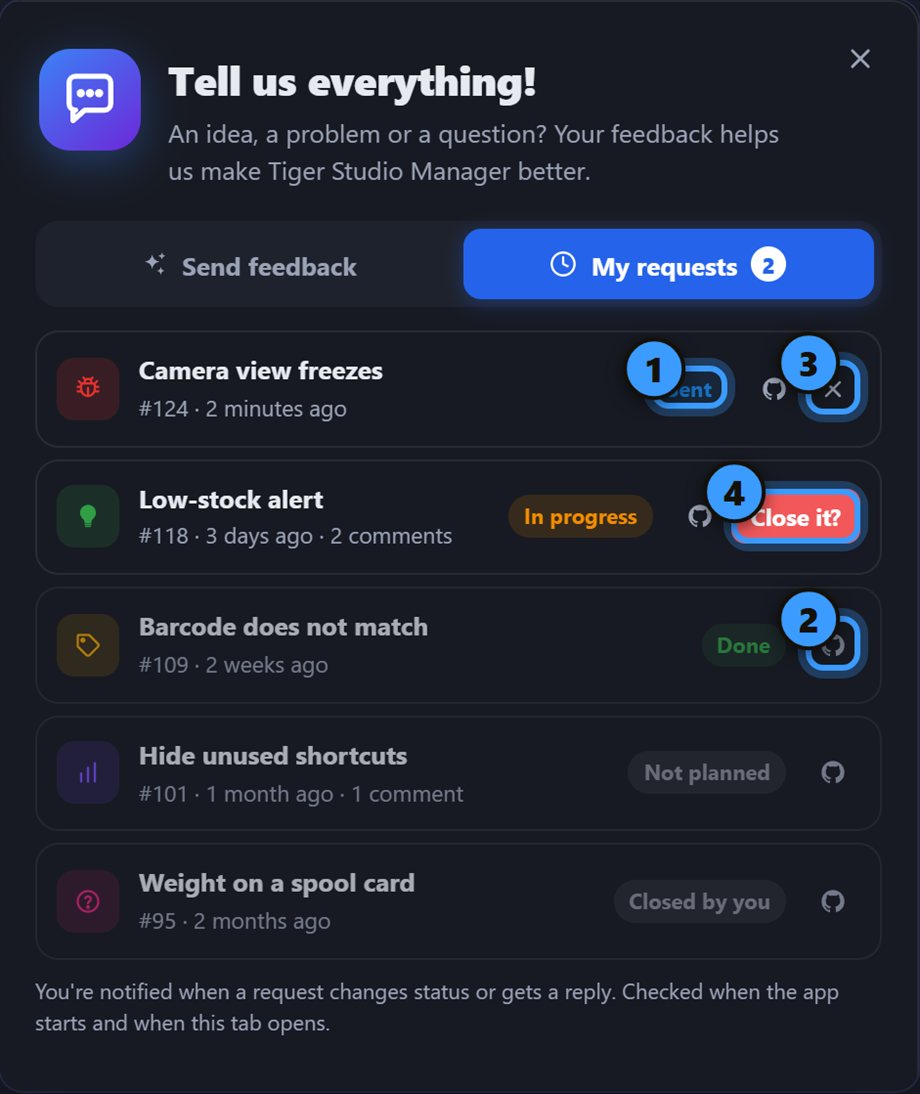
- Status
- See it on GitHub
- Close this request
- Confirm
| Status | Meaning |
|---|---|
| Sent | received, nobody has looked yet |
| In progress | someone is working on it |
| Done | fixed or shipped |
| Not planned | the team will not do it |
| Closed by you | you closed it yourself |
Only Sent and In progress requests can be closed: click the ✕, then confirm with Close it?.
You are notified. When a request changes status or gets a reply from the team, a notification appears in the bell. It is checked when the app starts and when the My requests tab opens.
If something goes wrong
Section titled “If something goes wrong”- “It didn’t go through” — try again in a moment, your draft is still there.
- “Sign in first” — the request needs your Tiger account.
- “That’s a lot of reports for one day” — a daily limit; try again tomorrow.
Related: Tiger Studio, FAQ, Tutorials